How to Check Whether an Obsidian Note Will Be Read-Only
Path tester is built into Settings → Read Only View. Use it to understand why a specific note is protected or remains editable; this website does not run the tester or access your vault.
Can I test a note path before opening the note?
Yes. Path tester evaluates the current configuration for the supplied path without requiring you to open the note. Obsidian URLs and system paths must resolve to existing items; enter a specific Markdown note to get a read-only result.
- Configure your Path rules and wait for Saved.
- Find Path tester in the plugin settings.
- Paste a vault-relative note path such as
Reference/Handbook.md, an Obsidian URL, or a desktop system path. - Review the detected source type and resolved vault path.
- Check the matching include and exclude rules, the all-Markdown preset explanation, and the final Read-only or Editable status.
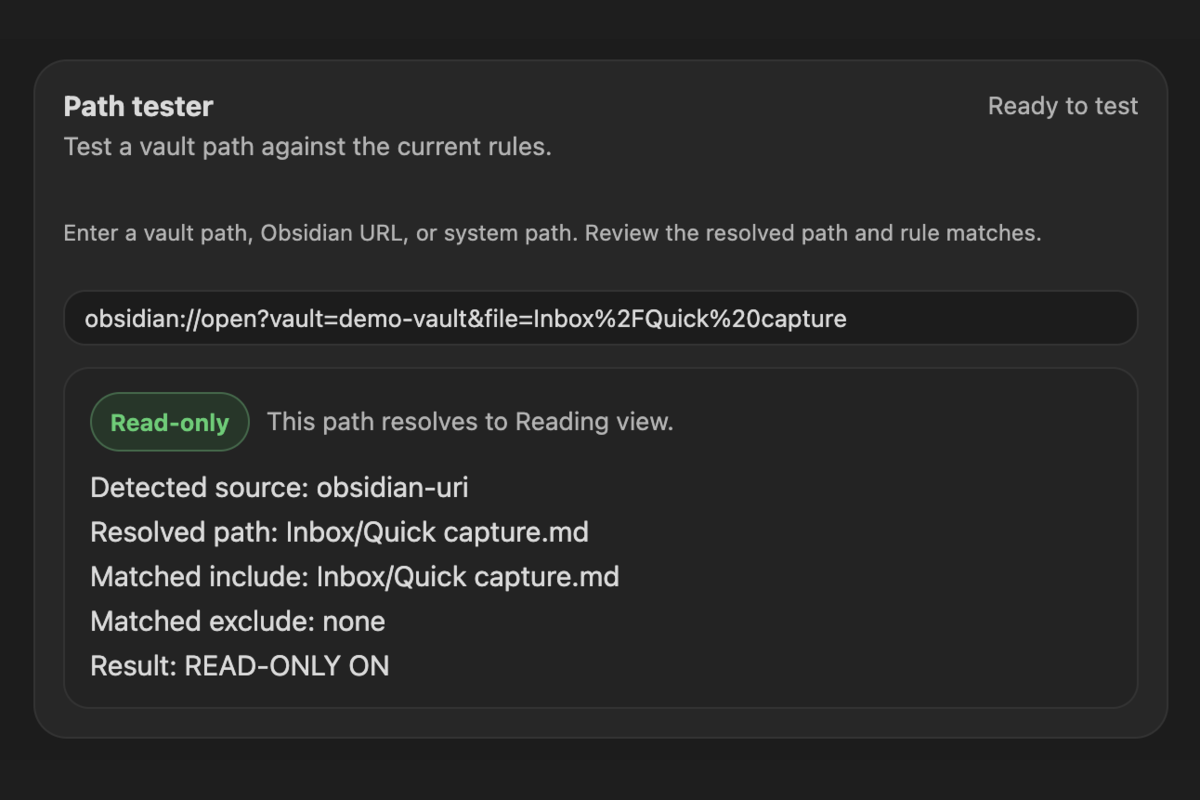
Interpret a result
With Enabled on, Only matched paths selected, glob matching off, an Include for Reference/, and an Exclude for Reference/Drafts/:
| Tested path | Expected result | Reason |
|---|---|---|
Reference/Handbook.md | Read-only | Include matches; no exclude matches |
Reference/Drafts/Handbook.md | Editable | Exclude wins |
Inbox/Capture.md | Editable | No include matches |
In All Markdown files, a note can be read-only without any include matches. The preset determines the result unless an exclude matches. Turning Enabled off disables protection.
Resolve input problems
- Wrong vault or missing note: an Obsidian URL must resolve to an existing Markdown note in the current vault.
- System path on mobile: import new absolute paths on desktop, or enter the portable vault-relative path instead.
- Folder instead of a note: for a system folder, the tester shows the resolved folder and asks for a specific Markdown note before evaluating matches.
- Unexpected Editable status: check excludes, the row's Enabled checkbox, letter case, and whether glob matching is on.
- Unexpected Read-only status: check whether All Markdown files is selected.
The result explains the current configuration; it is not a filesystem-permission check or a guarantee for every embedded view. If open notes do not reflect saved changes, run Re-apply rules now from the Command Palette and reopen the note if necessary.
For a step-by-step diagnosis of unexpected results, see Troubleshooting read-only notes.