How to Show Locked Notes in Obsidian File Explorer
Turn on Settings → Read Only View → Advanced → Show protection indicators to display a lock beside protected notes and folders in Obsidian's File Explorer. This optional setting is off by default.
Enable protection indicators
If needed, install and enable Read Only View first.
- Open Settings → Read Only View and keep the global Enabled toggle on.
- Scroll to Advanced.
- Turn on Show protection indicators, above the Matching section.
- Return to File Explorer and expand a folder to see its note indicators.
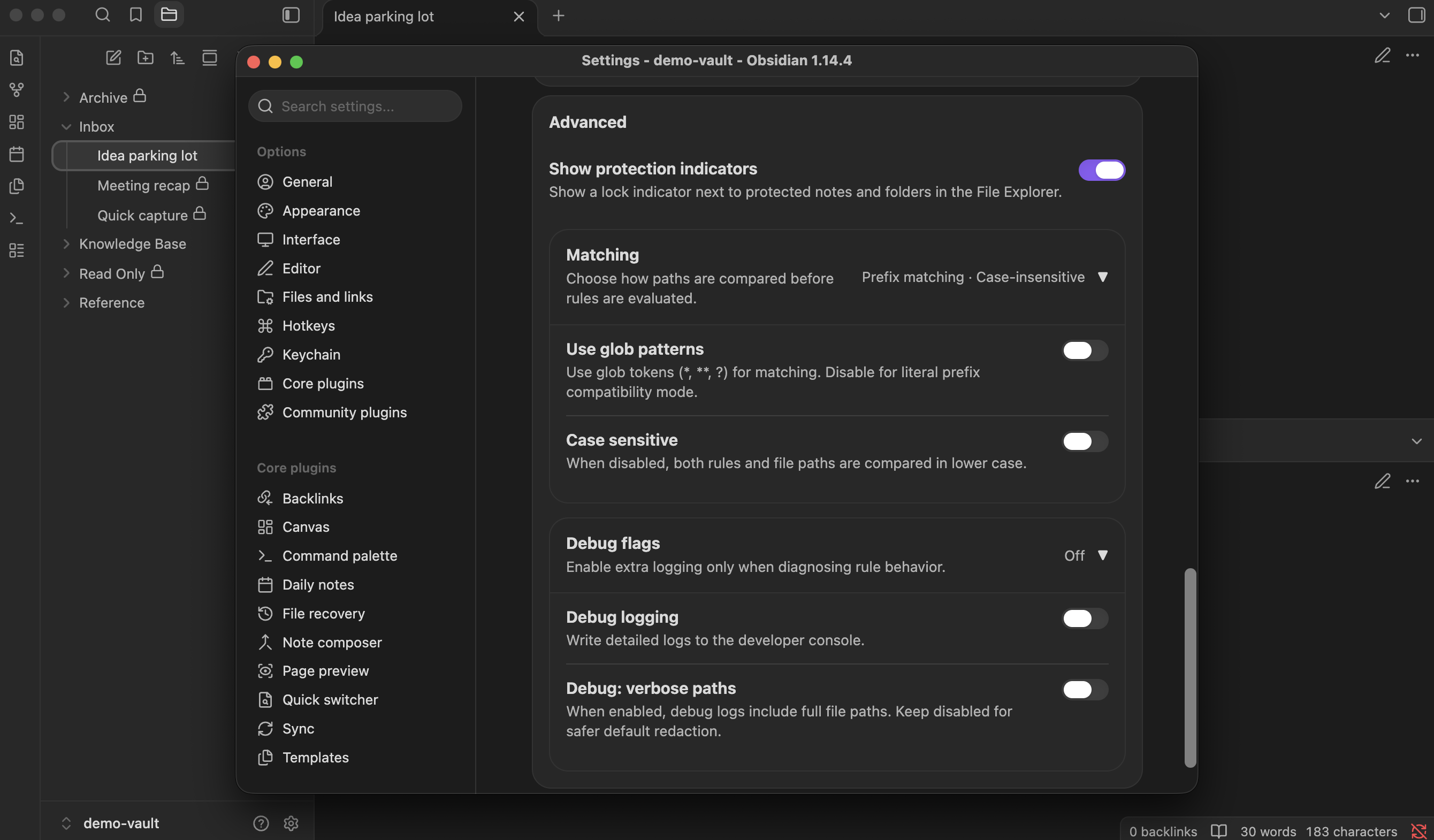
This setting displays the result of your current protection rules. It does not add rules or lock previously editable notes. Use Lock → Reading or configure path rules to choose what is protected.
What note and folder lock icons mean
A Markdown note's lock means Read Only View currently protects its path. Enabled Excludes take priority over Includes and All Markdown files. Excluded notes have no lock, and PDFs, images, and other non-Markdown files receive no note indicator.
A folder's lock means the folder path itself matches protection, including the current mode and Excludes. It does not mean every note inside is protected. A folder can show a lock while an excluded subfolder or individual note remains editable. Conversely, individually locked notes can sit inside a folder with no folder lock. An empty folder can also have a lock if its path qualifies.
To check all Markdown notes inside a folder, use Explain read-only status. That dialog provides protected/editable counts and examples; the icon does not summarize those counts.
Example: a protected folder with editable drafts
With Enabled on, Only matched paths selected, and Use glob patterns off, enable Include Reference/ and Exclude Reference/Drafts/:
| File Explorer item | Indicator |
|---|---|
Reference folder | Lock |
Reference/Handbook.md | Lock |
Reference/Drafts folder | No lock |
Reference/Drafts/New policy.md | No lock |
Reference/Diagram.png | No lock; it is not a Markdown note |
If you use glob matching, use Reference/** and Reference/Drafts/**. See folder protection with exceptions for setup details.
When indicators change
Indicators refresh when protection rules or the selected mode change, including after Lock → Reading and Unlock. They also refresh as File Explorer displays items and when files or folders are created, moved, renamed, or deleted. Renaming an item does not rewrite its saved rules: the indicator reflects its new path against the existing configuration.
Turning Show protection indicators off removes the icons while keeping protection rules in effect. Turning global Enabled off also removes them because enforcement is disabled. An Unlock action may leave an icon visible if another rule or All Markdown files still protects the path.
Desktop, mobile, and missing indicators
The indicator feature has no desktop-only restriction and uses Obsidian's File Explorer on desktop and mobile. On a phone or tablet, open File Explorer to see its visible items. The screenshots here show desktop Obsidian.
If an expected icon is missing, check that both Enabled and Show protection indicators are on, then explain the item's read-only status. Indicators depend on Obsidian's File Explorer layout; they do not appear in every note list or third-party explorer. A missing folder icon alone does not tell you whether its notes are editable.
A visible lock is an aid to recognizing accidental-edit protection inside Obsidian. It does not change filesystem permissions or prevent another application from editing a file.