How to Lock Notes and Folders in Obsidian
In Obsidian's File Explorer, use Right click → Lock → Reading on a Markdown note or folder. Read Only View creates or enables an Include rule so matching notes stay in Reading view, subject to your Exclude rules.
Lock a note or folder from File Explorer
If needed, install and enable Read Only View first.
- Open Settings → Read Only View and keep Enabled on.
- Select Only matched paths to protect selected notes and folders. New installations use All Markdown files, which already protects all Markdown notes unless excluded.
- Return to File Explorer and right-click a Markdown note or folder.
- Choose Lock → Reading. This is one menu item, not a submenu.
- Open a note in that location. To check the result, right-click it and choose Explain read-only status.
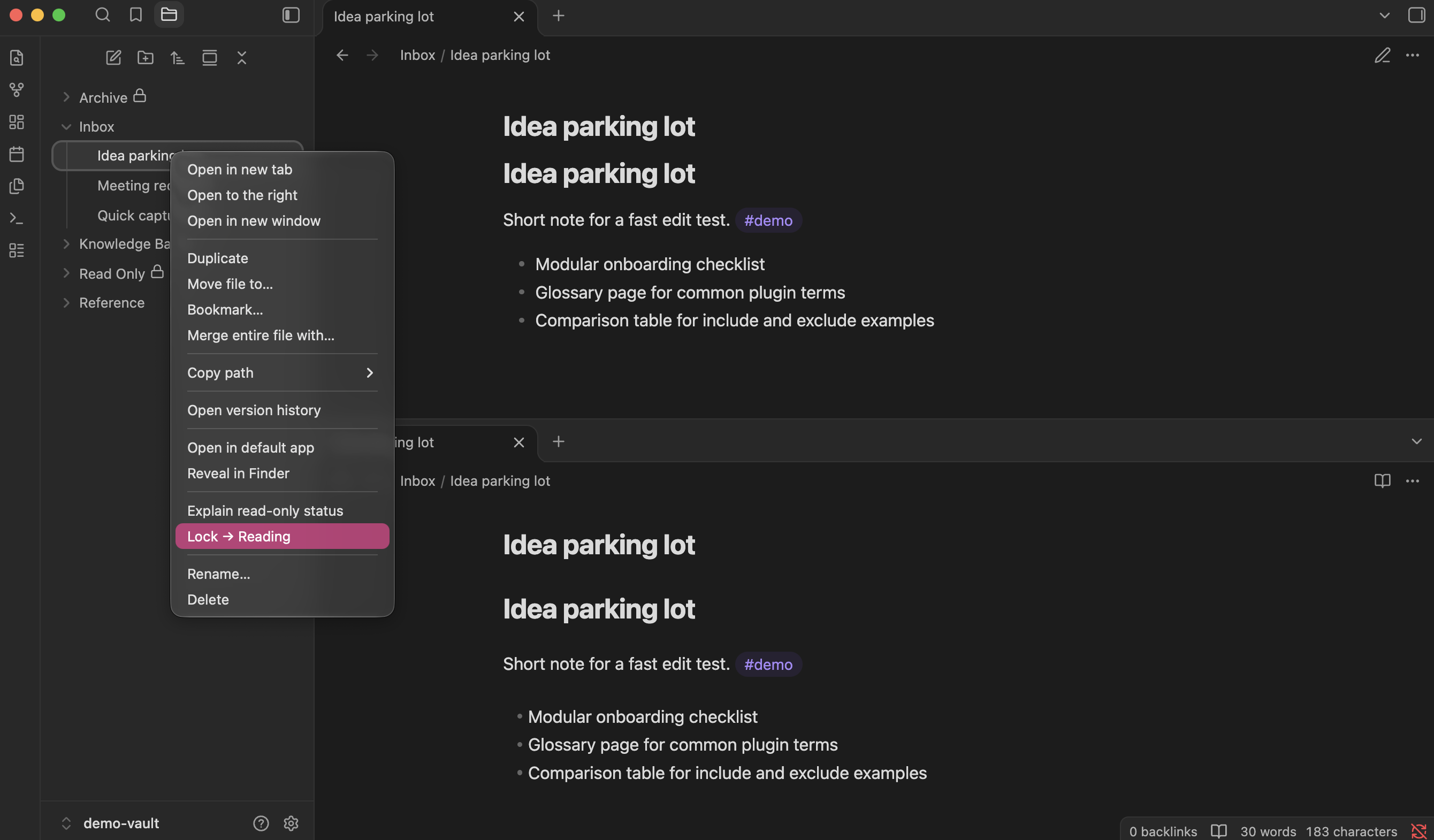
A note lock targets that note. A folder lock covers Markdown notes inside the folder and its subfolders. PDFs, images, and other attachments are unaffected.
How the shortcut uses Include rules
The rule appears under Settings → Read Only View → Path rules, where you can review or disable it. Existing rules for the same target are reused. A new note rule uses an exact Obsidian URL; a new folder rule uses Folder/ with glob matching off or Folder/** with it on.
The shortcut keeps your current mode and global Enabled setting. If protection is disabled, the rule is saved but does not enforce Reading view. An enabled Exclude always wins over an Include, including one created by the menu.
See Include/Exclude precedence and path formats and glob patterns for matching details.
Unlock a note or folder
- Right-click the same note or folder in File Explorer.
- Choose Unlock.
- Check Explain read-only status. If protection is off, switch the note from Reading view to editing when you want to write.
Unlock disables the corresponding Include rows; it does not delete them. Their values stay in Path rules for reuse. To delete a saved row permanently, use its Delete button in settings.
Unlock does not change parent-folder Includes or Excludes. Another Include or All Markdown files can therefore keep the note protected. The menu offers Unlock based on a rule for that target, so a note protected only by its parent folder may still offer Lock → Reading. Use Explain read-only status to identify what actually protects it.
Example: lock reference notes but keep drafts editable
With Enabled on, Only matched paths selected, and Advanced → Matching → Use glob patterns off:
- Right-click
Referencein File Explorer and choose Lock → Reading. - In Path rules, add an enabled Exclude with Value set to
Reference/Drafts/. - Wait for Saved. and check both locations.
| Note | Result |
|---|---|
Reference/Handbook.md | Protected by the folder Include |
Reference/Policies/Travel.md | Protected, including in a nested folder |
Reference/Drafts/New policy.md | Editable because the Exclude wins |
Locking Reference/Drafts/New policy.md individually will not override that Exclude. With glob matching on, use Reference/** and Reference/Drafts/** instead. For more exceptions, see protect a folder while leaving notes editable.
What a lock does and does not protect
Read Only View prevents accidental editing in supported Obsidian Markdown views. It does not encrypt notes, add password protection, change operating-system file permissions, or form a security boundary against external editors. Other applications and plugins can still modify files.
Review rules after moving or renaming a note or folder: saved paths do not follow renames automatically. The vault root has no lock shortcut. Some names cannot be locked through this action; see context-menu path limitations if a notice appears.