Why Is My Obsidian Note Read-Only?
Right-click the note in Obsidian's File Explorer and choose Explain read-only status. Read Only View shows whether its current path rules protect the note, why, and which Include and Exclude rules match.
This diagnoses Read Only View protection. Obsidian or other plugins may have separate reasons for preventing editing; this dialog does not diagnose every read-only condition.
Check a note without opening settings
With Read Only View installed and enabled:
- Find the Markdown note in File Explorer.
- Right-click it and select Explain read-only status.
- Read the path, READ-ONLY ON or READ-ONLY OFF, and Reason.
- Under Matched rules, review Include and Exclude. None means there are no matches in that list.
The reason follows this order:
| Condition | Effect |
|---|---|
| Global Enabled is off | Protection is off, even if rules match |
| An enabled Exclude matches | The note is editable |
| All Markdown files is active | The note is protected without needing an Include |
| Only matched paths is active | A matching enabled Include protects the note; otherwise it is editable |
Disabled rules do not participate in matching. Matching rules can still be displayed while global protection is off, so read the final status and reason together. See how Include and Exclude rules interact.
The dialog reports the current configuration without changing rules, files, or editor state. Close and reopen it after changing rules to inspect the new result.
Check a folder and find editable exceptions
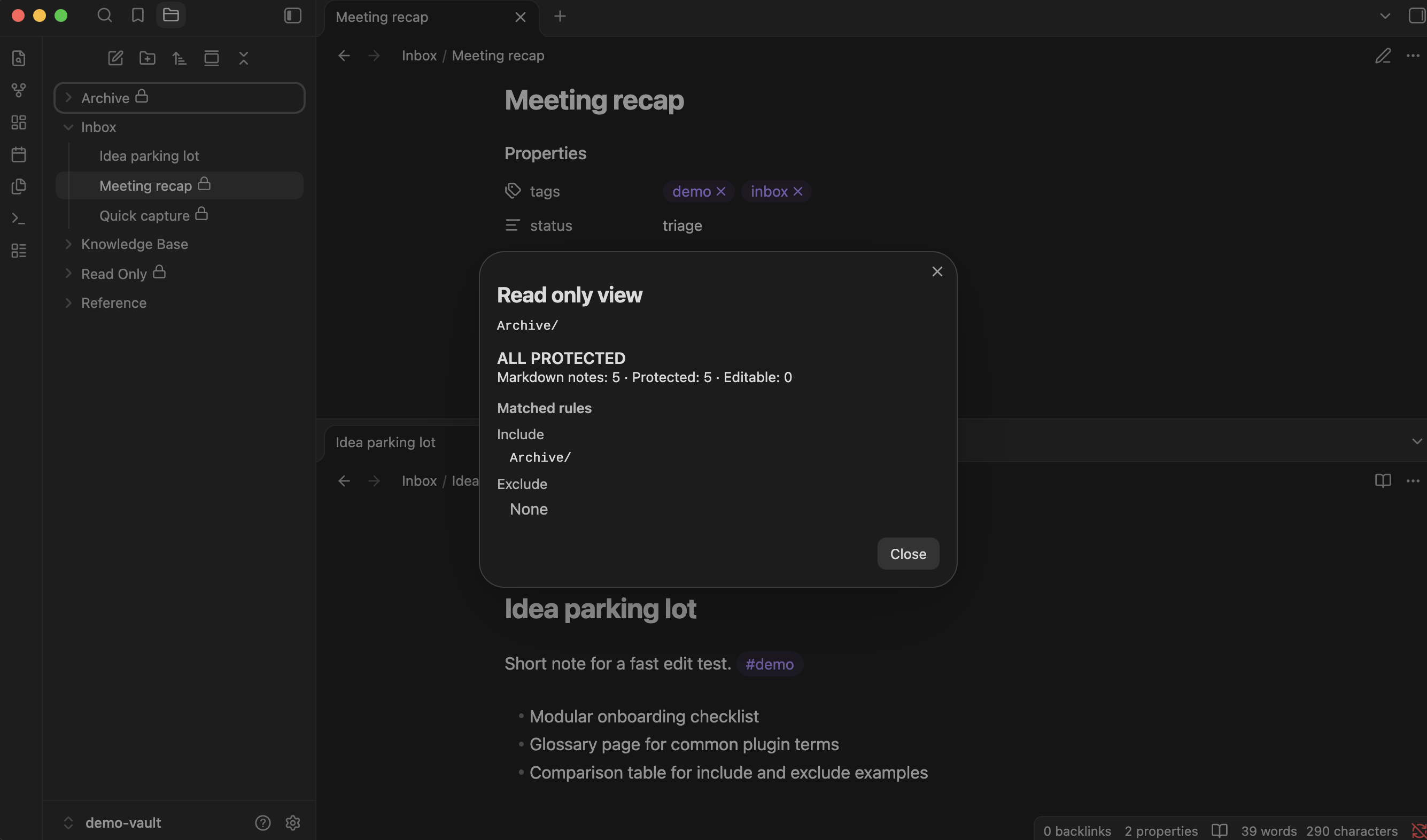
Right-click a folder and choose Explain read-only status. The dialog checks existing Markdown notes in that folder and all nested folders. It shows Markdown notes, Protected, and Editable counts, plus one of these results:
| Folder status | Meaning |
|---|---|
| ALL PROTECTED | Every Markdown note inside is protected |
| MIXED | Some Markdown notes are protected and some are editable |
| NOT PROTECTED | Markdown notes exist, but none are protected |
| NO MARKDOWN NOTES | No Markdown notes were found inside |
For folders containing Markdown notes, Matched rules lists the Includes and Excludes matching those notes, without repeating the same rule. Editable examples lists up to five note paths when exceptions exist. This is a summary of existing notes, not a prediction for every future file.
Example: summaries are protected, drafts are editable
With Enabled on, Only matched paths selected, and Use glob patterns off, enable these rules:
| Type | Value |
|---|---|
| Include | Notes/Summaries/ |
| Exclude | Notes/Summaries/Drafts/ |
Notes/Summaries/Weekly review.md reports READ-ONLY ON because the Include matches. Notes/Summaries/Drafts/Next week.md reports READ-ONLY OFF because the Exclude takes priority, even though the Include also matches.
If these are the folder's only two Markdown notes, explaining Notes/Summaries/ shows MIXED, with one protected note, one editable note, and the draft under Editable examples. With glob matching on, use Notes/Summaries/** and Notes/Summaries/Drafts/** instead.
Why a note stays protected after Unlock
Unlock disables Include rows for that specific target. It leaves parent-folder rules, broader patterns, Excludes, and the selected mode unchanged.
For example, unlocking an individual summary does not disable Notes/Summaries/. All Markdown files also keeps notes protected regardless of their Include rows. Check the reason and all matching rules before deciding which rule to change. To keep one note editable under a broader rule, add an Exclude for it.
Troubleshoot an unexpected result
- Use Explain read-only status on the affected note, rather than relying on its parent folder's icon.
- In Settings → Read Only View, check Enabled, the selected mode, and the matching Include/Exclude rows.
- Check spelling, Advanced → Matching → Case sensitive, and Use glob patterns. Review saved paths after renames and any rule-limit warnings.
- Wait for Saved., then use Path tester to inspect a specific path or resolve an Obsidian URL or system path.
- If the result is correct but the open view has not caught up, run Re-apply rules now from the Command Palette and reopen the note if needed. When protection is off, switch from Reading view to editing yourself.
For source-resolution problems or a view that disagrees with the result, continue with rule and view troubleshooting.